Navigating the Billing tab; credit card information, payment profile and coupon codes.
Add a credit card
You can add or delete a credit card, update your payment profile, or add coupon codes in the Billing tab of Account Settings.
To begin adding a credit card to the account, click on Payment Information in the sidebar, and select, "Add Payment Method," to bring up a new form.
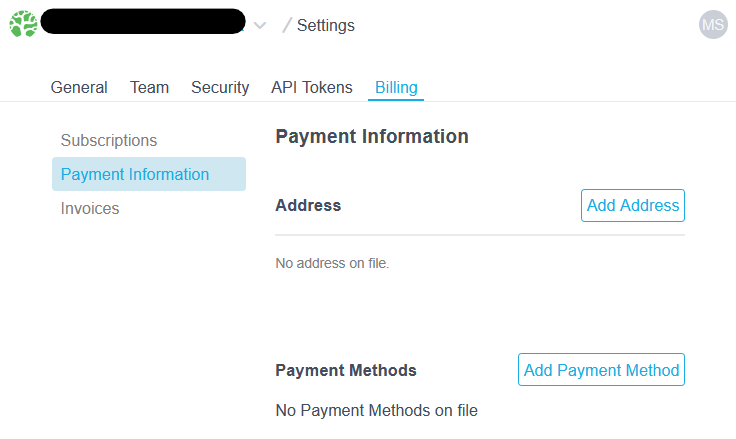
Fill in the credit card information and click Add Card to proceed. Click Cancel to go back.
Your Financial Data, Secured
When you add a credit card in Bonsai, the information is encrypted and passed to our payment processor. We have verified that this service is Level 1 PCI Compliant. This level of compliance is the highest level of security a business can offer. We do not host or store any financial data, and your credit card details can not be accessed by anyone on our team or within the payment processor.
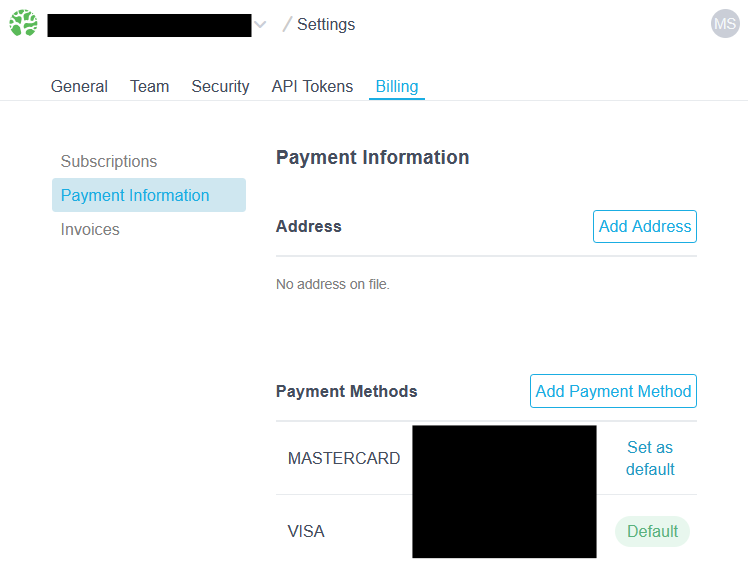
A successfully added credit card will be listed.
Check Card Details
Once there is at least one card listed in Credit Cards, click on the overflow menu icon to reveal a drop-down menu to View Details on that card.
Card Details lists the credit card information.
Set default credit card
You can associate multiple credit cards to your account. If you only have one credit card on file, it will automatically be the default. If you have multiple credit cards, you have the option to update the default credit card for payment.
To set another credit card as default, click on the overflow menu icon to reveal a drop-down menu to Set Default on that card.
Delete credit cards on file
To remove a credit card from an account, click on the overflow menu icon to reveal a drop-down menu to Delete a credit card.
Please note, you can delete a default credit card if all 3 of the following statements are true:
- it's the only credit card on file
- there are no active paid clusters on the account
- the account balance is $0
If you are having trouble deleting a default card, let us know at support@bonsai.io.
Add an Address
Once a credit card has been successfully added, the Address section will appear under Credit Cards. Adding an address here will aid in applying taxes based on your location. If tax is charged, then at what rate depends on this address. See Bonsai's Policy on Collecting Sales Tax for further information.
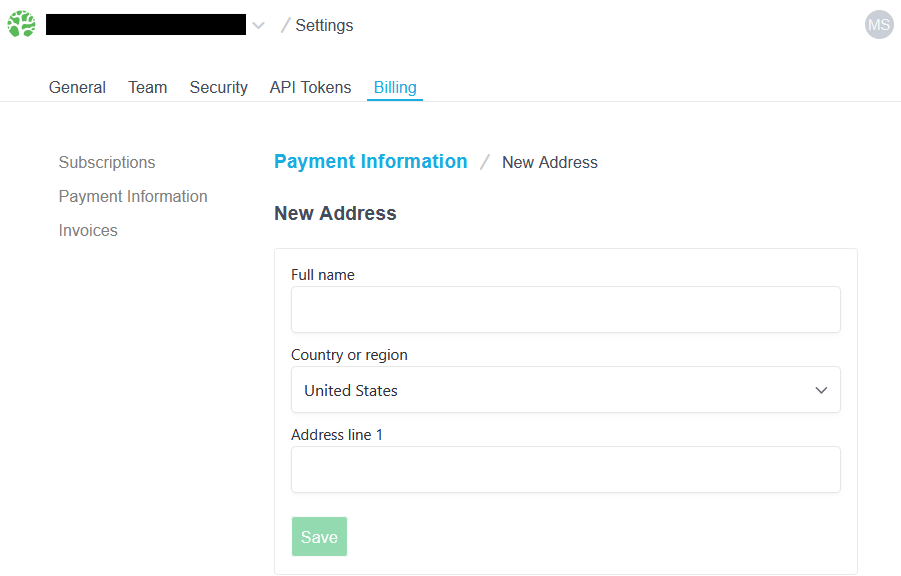
Clicking on the Add Address button will take you to a form where you can use an existing address populated from your credit card or fill out a new address.
A successfully added address will take you back to the Billing tab.
Coupon Codes
If you have a coupon code, you can add it in the Coupon Code section. Simply enter the code and click on Apply Coupon.
If the code is accepted, it will be listed under Coupon Codes.
If the code is not valid, there will be an error message.
If you have a code that isn't working but should, shoot us an email at support@bonsai.io and we'll check it out.
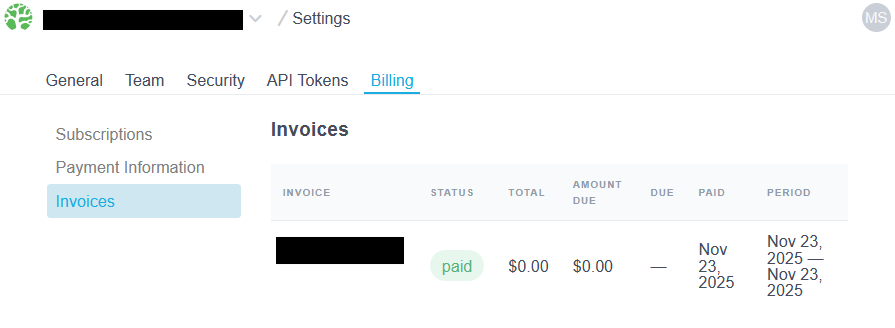
Invoices
Download and view the account invoices.
Ready to take a closer look at Bonsai?
Bonsai manages your search clusters and helps you achieve better search results for your users and your business. Find out if Bonsai is a good fit for you in just 15 minutes.