This article will give an overview of how to manage your profile settings in relation to Single Sign-On, Password Management, and Browser Session Management.
Each user has a "Security" tab in their Profile Settings page, and each Account has a "Security" tab within their Account Settings page.
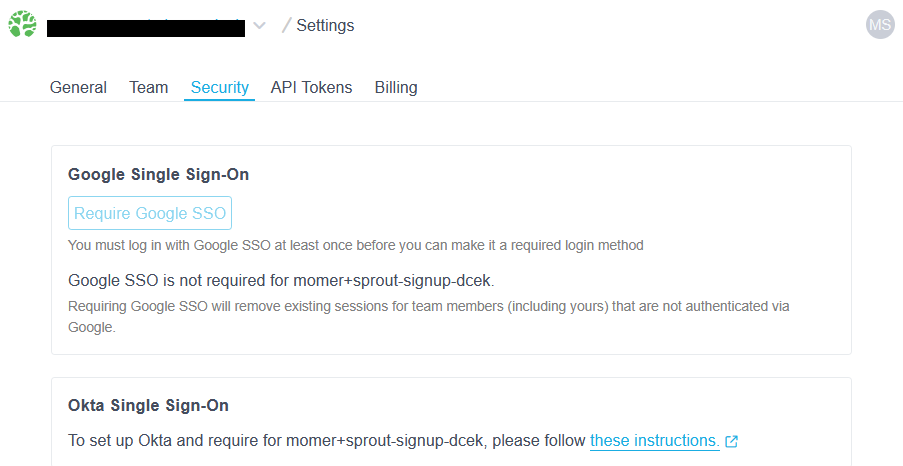
1. Single Sign-On
Single Sign-On (SSO) is the ability to have a third party service validate your identity. You can enable Google SSO which offers additional security like multi-factor authentication (MFA). Bonsai also supports Okta.
To use this feature, your identity provider must match your Bonsai.io account email address. For example, if your Google email address is "bob.smith@gmail.com," then your Bonsai.io account must use this same email address in order to verify your identity.
Once you have SSO set up, you will no longer be able to log in with your username/password. Logging in will need to be done through the identity provider.
To revert back to username/password authentication, you will need to disable SSO. To do so, simply click on Disable SSO.
If you see this section greyed out then your account admin has required that you use SSO.
2. Password Management
To update your password, enter your old password and a new password. Bonsai strongly recommends using a password manager like 1Password or LastPass to keep your passwords secure, and to help randomly generate new passwords.
3. Browser Session Management
View and revoke your active sessions by scrolling down to Active Sessions. If you have a session on another device, you can see its IP address and information about the device.
You can revoke sessions individually, or revoke all. Revoking all sessions will also revoke your current session that you are using to view your profile, and doing so will require you to log in again.
Ready to take a closer look at Bonsai?
Bonsai manages your search clusters and helps you achieve better search results for your users and your business. Find out if Bonsai is a good fit for you in just 15 minutes.