Overview
Upgrading your Bonsai cluster to a more powerful one is a straightforward process, designed to minimize downtime and maintain the integrity of your data. This document outlines the steps involved, the expected downtime, and the effort required for a successful upgrade.
Upgrade Process
Bonsai utilizes a two-phase snapshot and restore process to migrate your data from one hardware cluster to another. A snapshot of your data is taken from the current hardware and restored to the new new hardware. There is no downtime or production impact to your cluster during this phase. This phase of the upgrade can take time, depending on how much data you have on your existing hardware.
Once this is completed, a second snapshot-restore operation is performed. This operation is simply a delta — covering only the data that has been changed since the phase-1 shapshot was taken. Usually this second phase lasts a few seconds, or maybe a minute. During this phase, your cluster is placed into a read-only mode. Search traffic is not impacted, but writes are blocked until the restore completes.
Once this final restore has completed, the cluster will be running entirely on the new hardware, with no data loss.
Downtime and Effort
-
Zero Downtime for Searches:
- Your search operations will not experience any downtime during the upgrade process. This ensures continuous availability for read operations.
-
Short Window for Writes:
- There will be a brief period where write operations are paused. This typically lasts less than a minute, depending on the amount of data being transferred.
- An error message will be returned during this pause:
403 Forbiddenalong with a JSON response indicating thatCluster is currently read-only for maintenance. Please try your request again in a few minutes. See [status.bonsai.io](http://status.bonsai.io/) or contact [support@bonsai.io](mailto:support@bonsai.io) for updates.. It's essential to handle this gracefully in your application.
-
Data Volume Considerations:
- The time required for the upgrade depends on the size of your data and the rate of updates. Larger datasets may take slightly longer, but the write pause is generally kept under a minute.
-
Using a Queue and Buffering:
- As a general rule, we highly recommend using a queue to buffer write operations wherever possible. This could be something as simple as a Redis queue, kafka or similar that implements retries and exponential backoff for failed writes to the cluster. This ensures that transient network issues or other connection problems don't cause lost writes.
- During the upgrade process, this kind of queue can be paused to ensure that any writes attempted during the brief readonly phase are retried and successfully processed once the cluster is upgraded.
Changing a Cluster's Plan
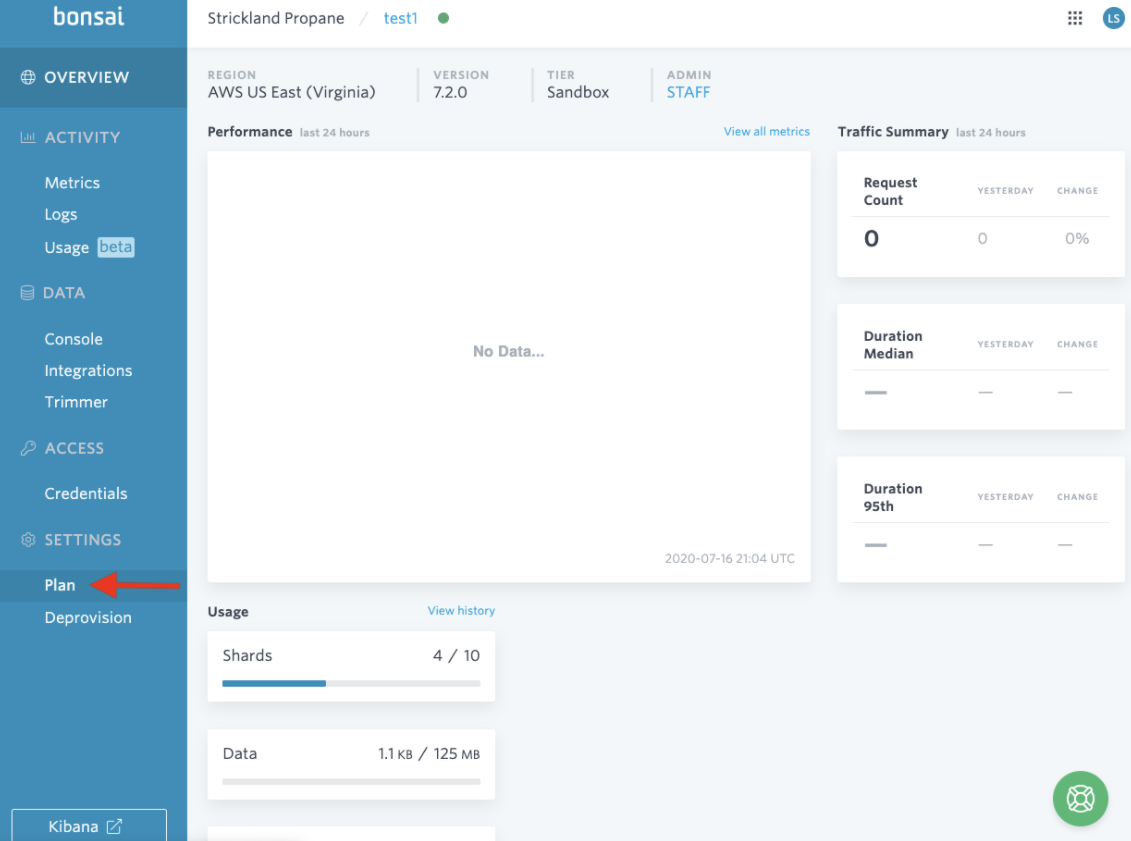
To begin, navigate to the cluster's Plan under Settings on the cluster dashboard.
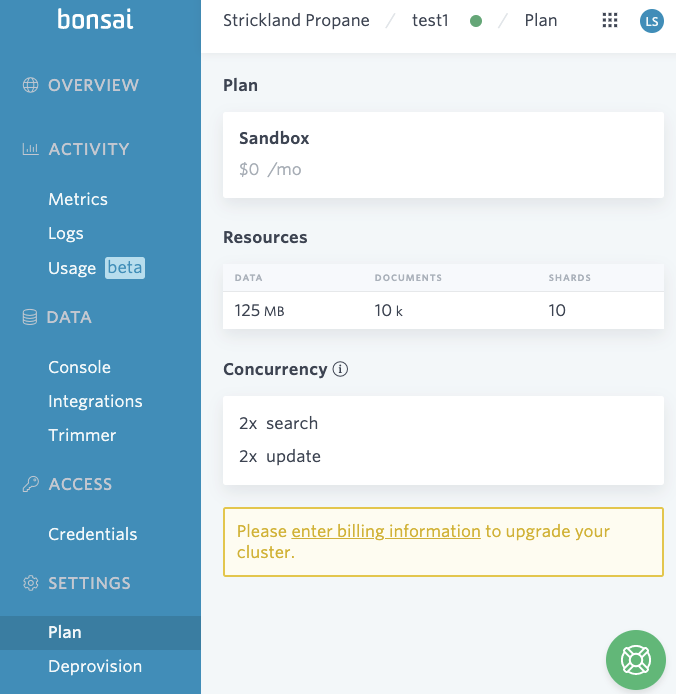
If you haven't added billing information yet, please do so at Account Billing. Detailed steps can be found in Add a Credit Card.
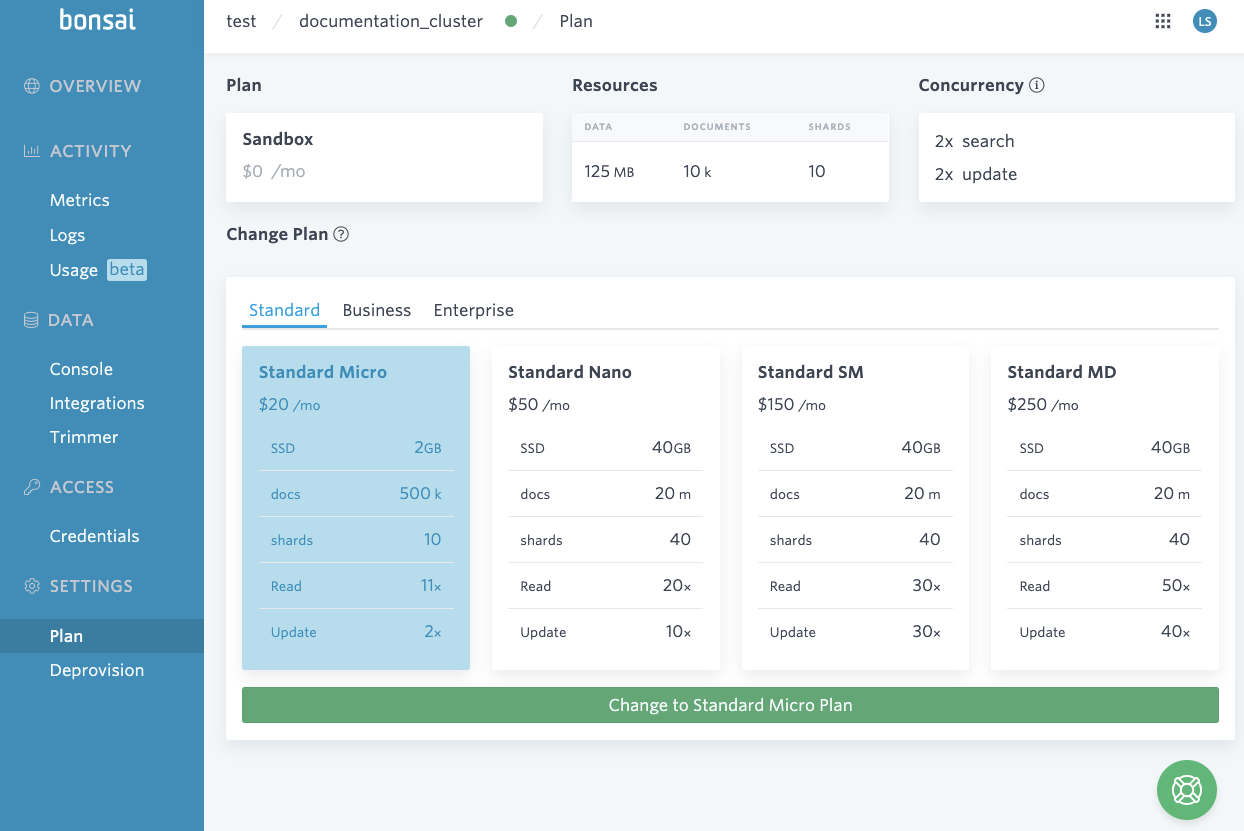
Once there is billing information listed on the account, you will see the different options for changing the cluster's plan. Select the plan you would like to change to and click the green Change to … Plan button. In this example, this documentation_cluster is on a Sandbox plan and it will be upgraded to a Standard Micro plan.
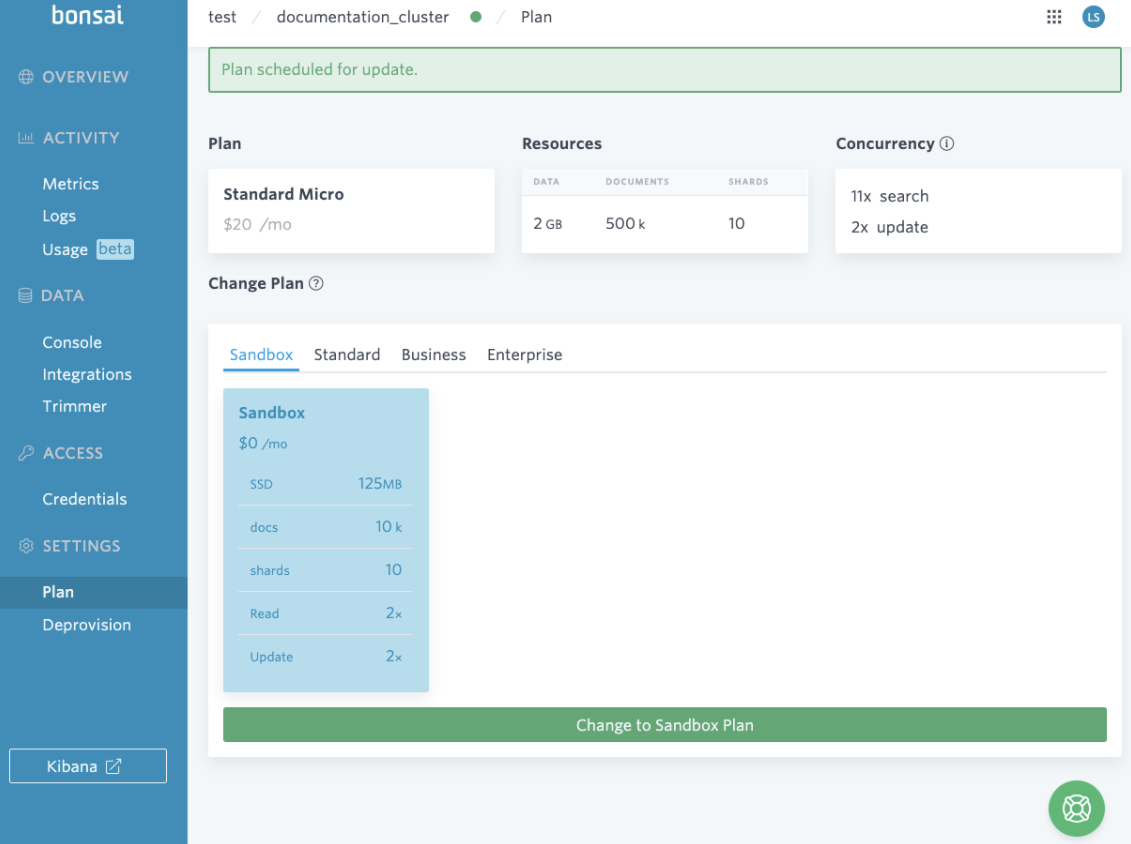
A successfully changed plan will notify you at the top with Plan scheduled for update. The Plan has been upgraded to the Standard Micro plan in this example.
Can't Downgrade?
Please note that downgrading a plan may fail to update if it puts the cluster in an Overage State for the new plan. For example, downgrading a Standard Micro plan to a Sandbox plan will fail if there is 11 shards on the cluster (Sandbox plan has a shard limit of 10).
Ready to take a closer look at Bonsai?
Bonsai manages your search clusters and helps you achieve better search results for your users and your business. Find out if Bonsai is a good fit for you in just 15 minutes.