We offer a free Hobby plan for development and testing on Heroku. A list of all available plans and capacities can be found at https://elements.heroku.com/addons/bonsai.
There are two ways to add Bonsai to your Heroku app:
- Through the Heroku CLI tool
- Through the Heroku app dashboard
Using the Heroku CLI tool
You can add Bonsai to your app with this command:
$ heroku addons:add bonsai
----- Adding bonsai to some-appname-4005... done, v18 (free)
You can verify that the operation was successful by running heroku config:get BONSAI_URL:
$ heroku config:get BONSAI_URL
----- [http://username:password@redwood-12345.us-east-1.bonsai.io/](http://username:password@redwood-12345.us-east-1.bonsai.io/)
If this value is null, then Bonsai was not properly added to your account. Try again and look for error messages. If you still have problems, give us a shout.
Once the Add-on has been successfully added, you can check on the status of your cluster by running
$ heroku addons:open bonsai -a
Specifying a Search Engine
Bonsai supports multiple search engines. The default is Elasticsearch, which will be used if nothing is specified on creation. Users can specify which search engine to use with the --engine parameter. To use it on the command line, you would use something like this:
heroku addons:create bonsai:[plan] [-a APP_NAME] [--engine=elasticsearch]
Allowed values are: "elasticsearch" and "opensearch".
Adding a specific version of a Search Engine
You have a fair amount of flexibility to choose the search engine version your cluster can run. There is a command line flag for specifying which version to use. This flag is called --version, and it can be invoked in a couple different ways. To use it on the command line, you would use something like this:
heroku addons:create bonsai:[plan] [-a APP_NAME] [--version=X.Y]
Bonsai only supports certain versions of a given search engine, so users cannot provision any version. If you request a version that is not available, Bonsai will default to the latest available version.
There is a list of available versions documented in our supported versions documentation. In short, the options available will be determined by three factors:
- Region. Your cluster will be provisioned in the same AWS region where your Heroku app is located. However, some regions support more versions than other regions, based on demand.
- Plan. Versions are rolled out to Hobby and Staging tier plans in advance of Production grade plans. Additionally, older versions of Elasticsearch may only be supported on Business tier plans.
- Age. Bonsai will occasionally deprecate older versions of Elasticsearch. If you need a version of Elasticsearch that is no longer supported, the only way to get it will be to upgrade to a Business plan.
The version and engine parameters also work in your app.json, if you use PR apps and Heroku pipelines:
{
  "name": "Small Sharp Tool",
  "description": "This app does one little thing, and does it well.",
  "keywords": [
    "productivity",
    "HTML5",
    "scalpel"
  ],
  "addons" : [
    {
      "plan": "bonsai:hobby",
      "options": {
        "version": "6.5.4",
        "engine": "elasticsearch"
      }
    }
  ]
}
To view a list of our current supported regions, see our supported versions documentation.
For further help with your app.json and addons, see Heroku's documentation here: Heroku App JSON Schema
Using the Heroku dashboard
To add Bonsai through the Heroku UI, open up your application in the Heroku dashboard.
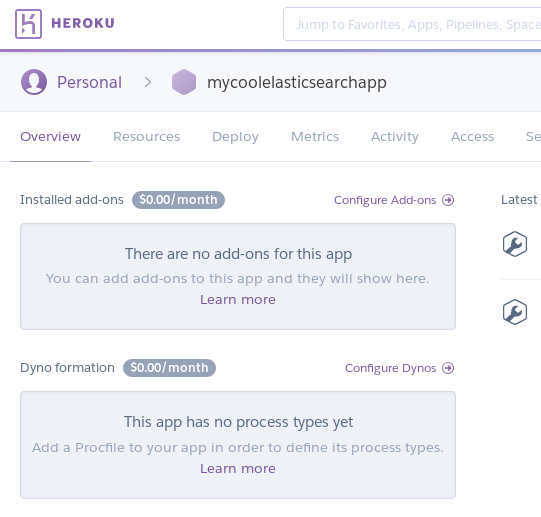
Click on either the Resources tab, or the “Configure Add-ons” link. This menu will have a search bar for various Add-ons. Begin typing “bonsai,” and the autocomplete will find the Bonsai Elasticsearch Add-on:
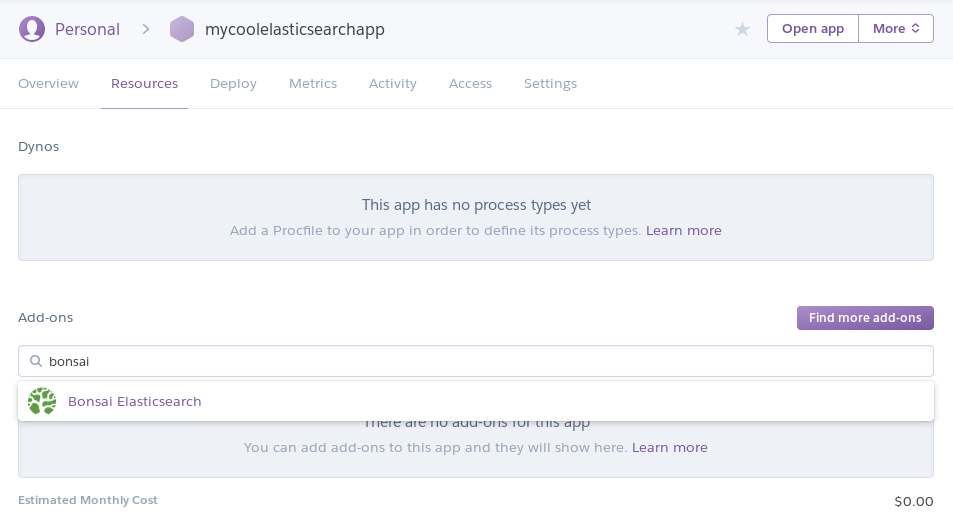
Click on the Add-on to add it to your application. This will bring up a new screen where you will be able to select a payment plan for your new cluster. See the Bonsai Heroku Add-ons page for details about what each plan offers.
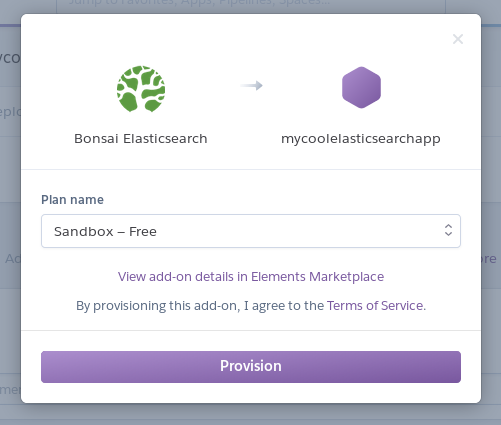
When you are ready, click on “Provision.” Your new cluster will be instantly created. Your dashboard will now show this:
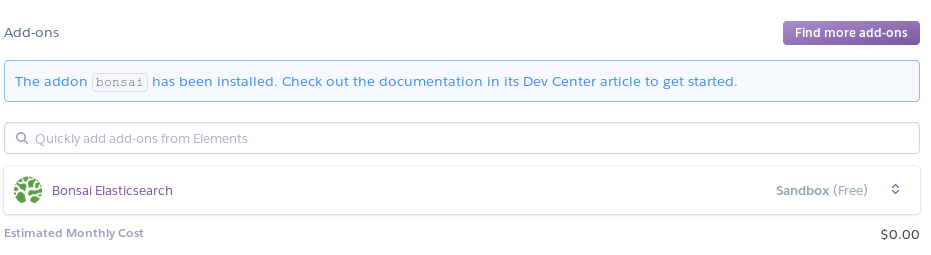
When Bonsai is added to your application, a new environment variable called BONSAI_URL is created and initialized with the URL to your cluster. This is the URL that you will need in order to interact with your cluster.
Your application should be configured to read this URL directly from the environment, and should not be hard-coded or shared with others. If you would like to confirm that Elasticsearch is up and running, you can retrieve the URL by clicking no the Settings tab in the Heroku Dashboard.
There will be a section called “Config Vars”:
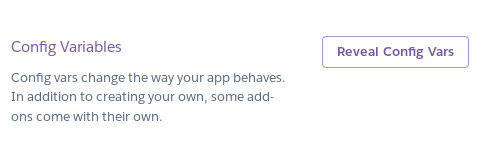
Click on “Reveal Config Vars” to see your environment variables. This will reveal the value of each variable like so:
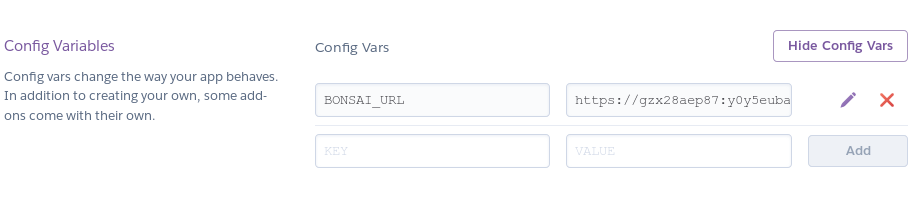
You can copy the contents of the BONSAI_URL to your clipboard and paste it into a browser or curl command to see the response from Elasticsearch:
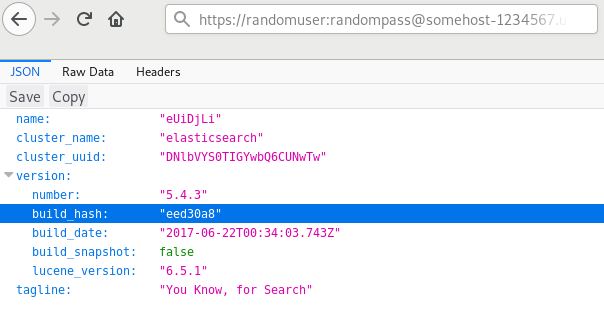
$ curl https://username:password@somehost-1234567.us-east-1.bonsai.io
{
  "name" : "PvRcoFq",
  "cluster_name" : "elasticsearch",
  "cluster_uuid" : "DNlbVYS0TIGYwbQ6CUNwTw",
  "version" : {
    "number" : "5.4.3",
    "build_hash" : "eed30a8",
    "build_date" : "2017-06-22T00:34:03.743Z",
    "build_snapshot" : false,
    "lucene_version" : "6.5.1"
  },
  "tagline" : "You Know, for Search"
}
HTTP 401: Authentication required
If you're seeing this message, then you're not including the correct authentication credentials in your request. For more details, see 401 Authorization Required. Double check that the request includes the credentials shown in your dashboard and try again.
Keep Your URL Secret
Because the URL includes authentication information, anyone with the fully-qualified URL can access your cluster. Treat the URL like a password: don't hard-code it into applications, don't check it into source control, and for Pete's sake, never ever paste it into a StackOverflow question. If you need to share your cluster URL with us for support purposes, the auth-less host name is all you need:
Bad: “My cluster is https://username:password@somehost-1234567.us-east-1.bonsaisearch.net”
Good: “My cluster is somehost-1234567”
If your URL is leaked somehow, you can regenerate the credentials.
Adding Bonsai to your app automatically creates a cluster for you. It also adds a variable called BONSAI_URL to your application's environment, which will contain the canonical URL and credentials to your cluster. This automation makes it fast and easy to get started with your new cluster.
Ready to take a closer look at Bonsai?
Bonsai manages your search clusters and helps you achieve better search results for your users and your business. Find out if Bonsai is a good fit for you in just 15 minutes.